
How do I access and download my Backup archive?Updated an hour ago
Your Backup archive is now part of the Legacybox web app. You sign in at my.legacybox.com to see what's in your archive, prepare it, and download all of it to your computer.
Using the Legacybox app? You can start preparing your archive in the app too. Tap Download, then Prepare my archive. We'll email you when it's ready, and you download it at my.legacybox.com on your computer. If the app says the daily download limit has been reached, try again the next day.
Sign in to find your archive
Go to my.legacybox.com and sign in.
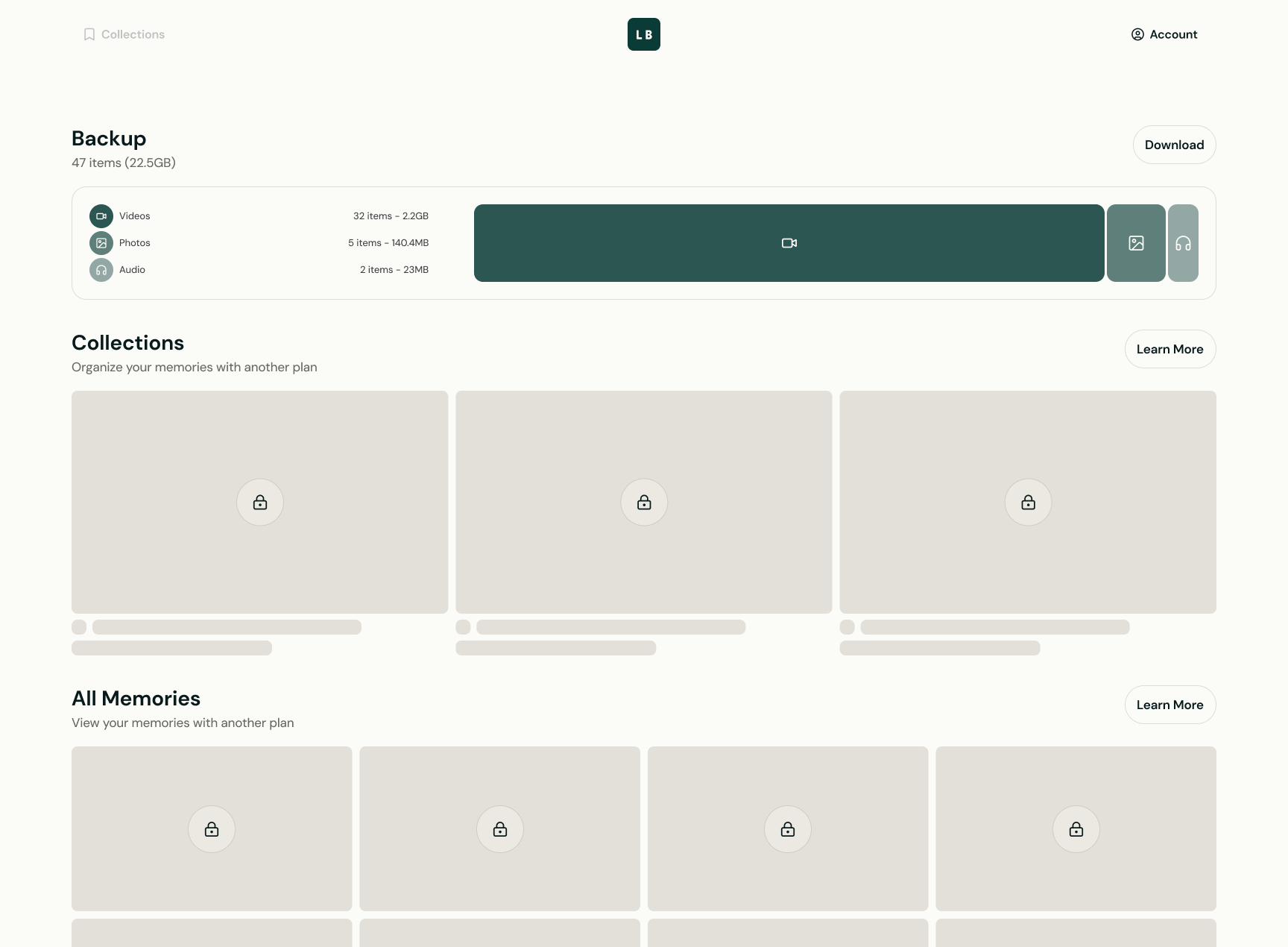
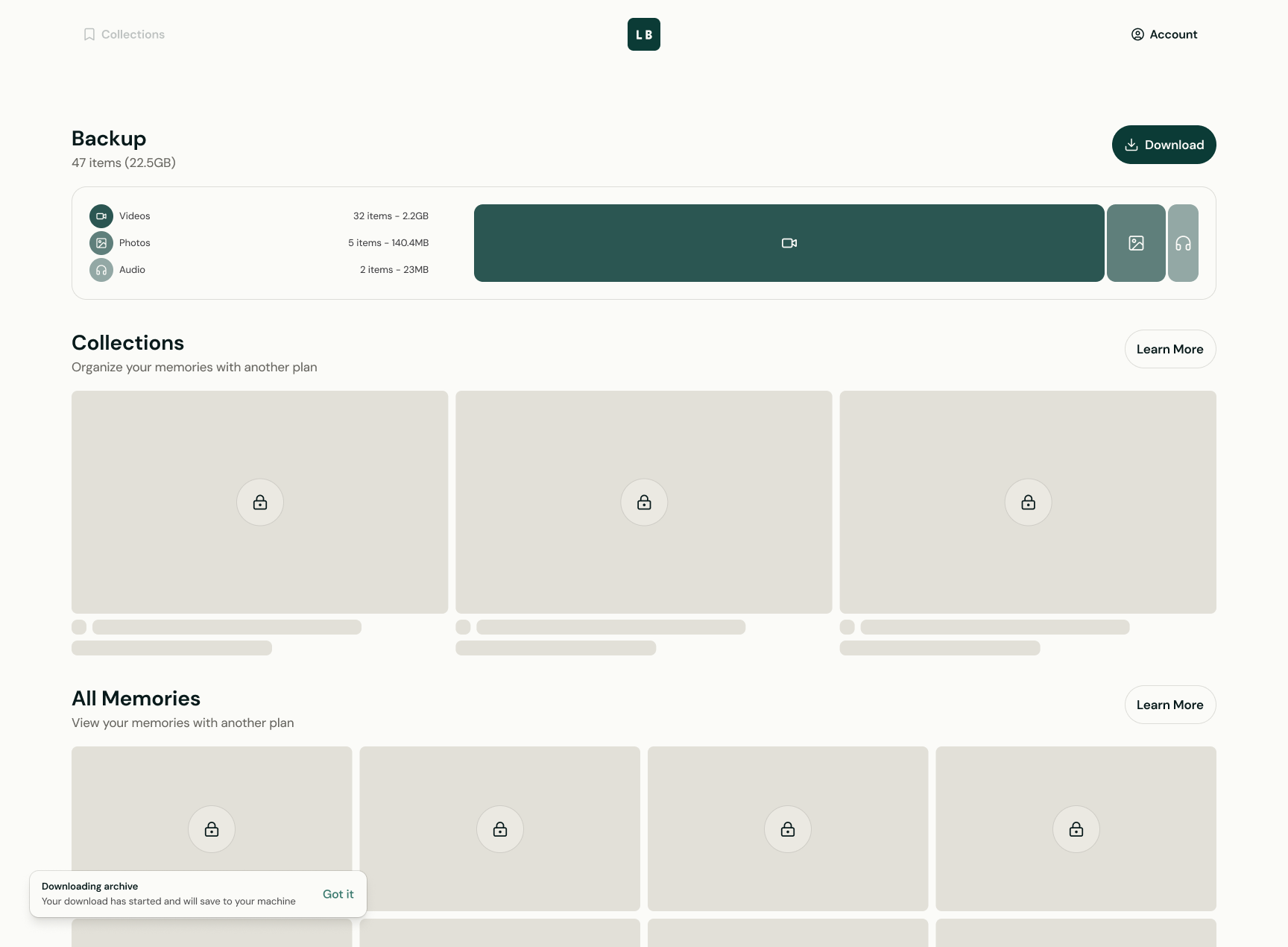
Your Backup archive appears at the top of the page, with everything it contains counted by videos, photos, and audio.
Prepare your archive
Archives are large, so we bundle yours into a single download before you can save it. You only need to start the process. We do the rest.
Select Download at the top right of the Backup section.
Select Prepare my archive to confirm. Preparing may take several hours or a few days, depending on how much your archive holds.
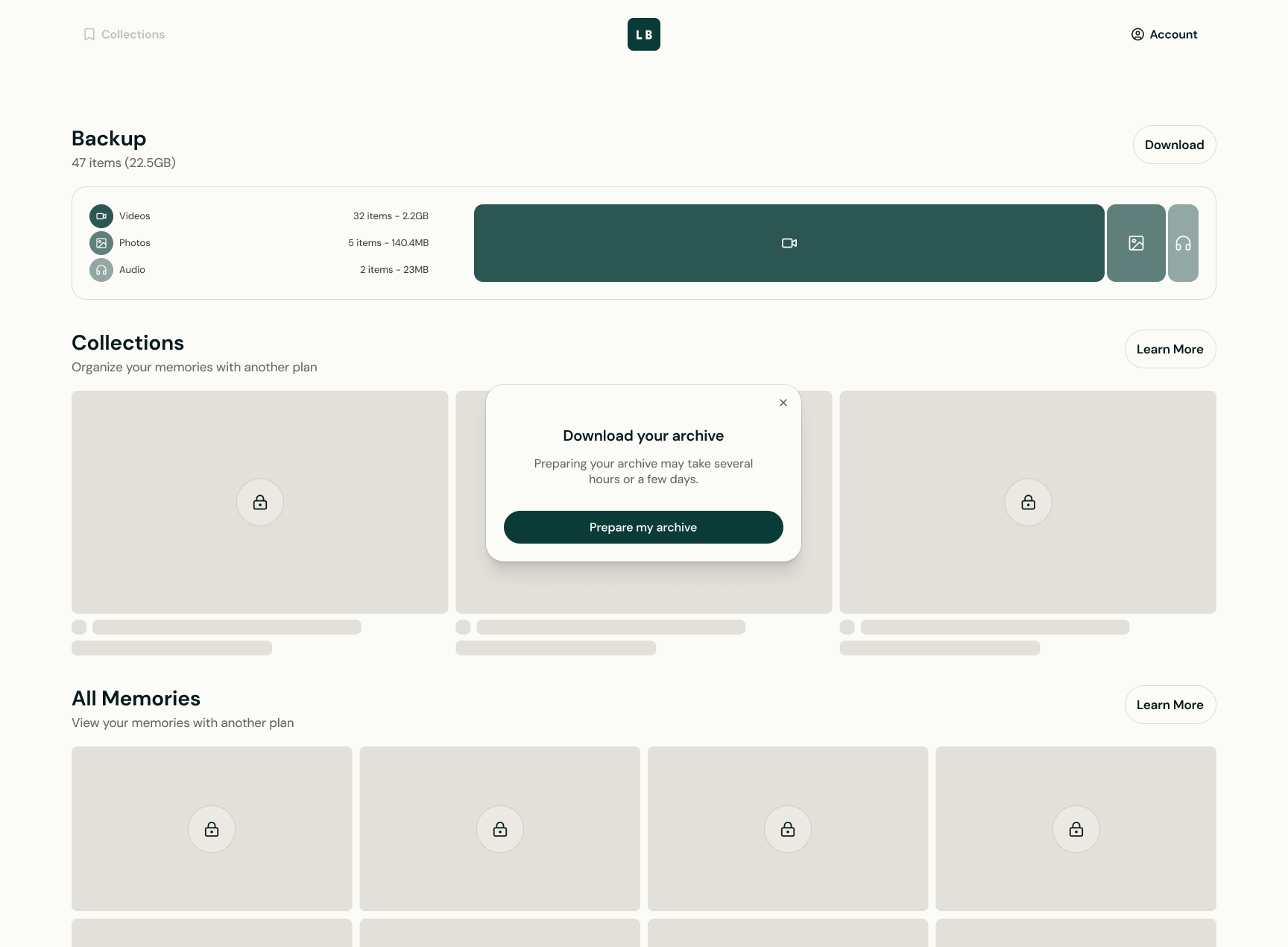
That's it for now. You can leave the page, and we'll email you when your archive is ready.
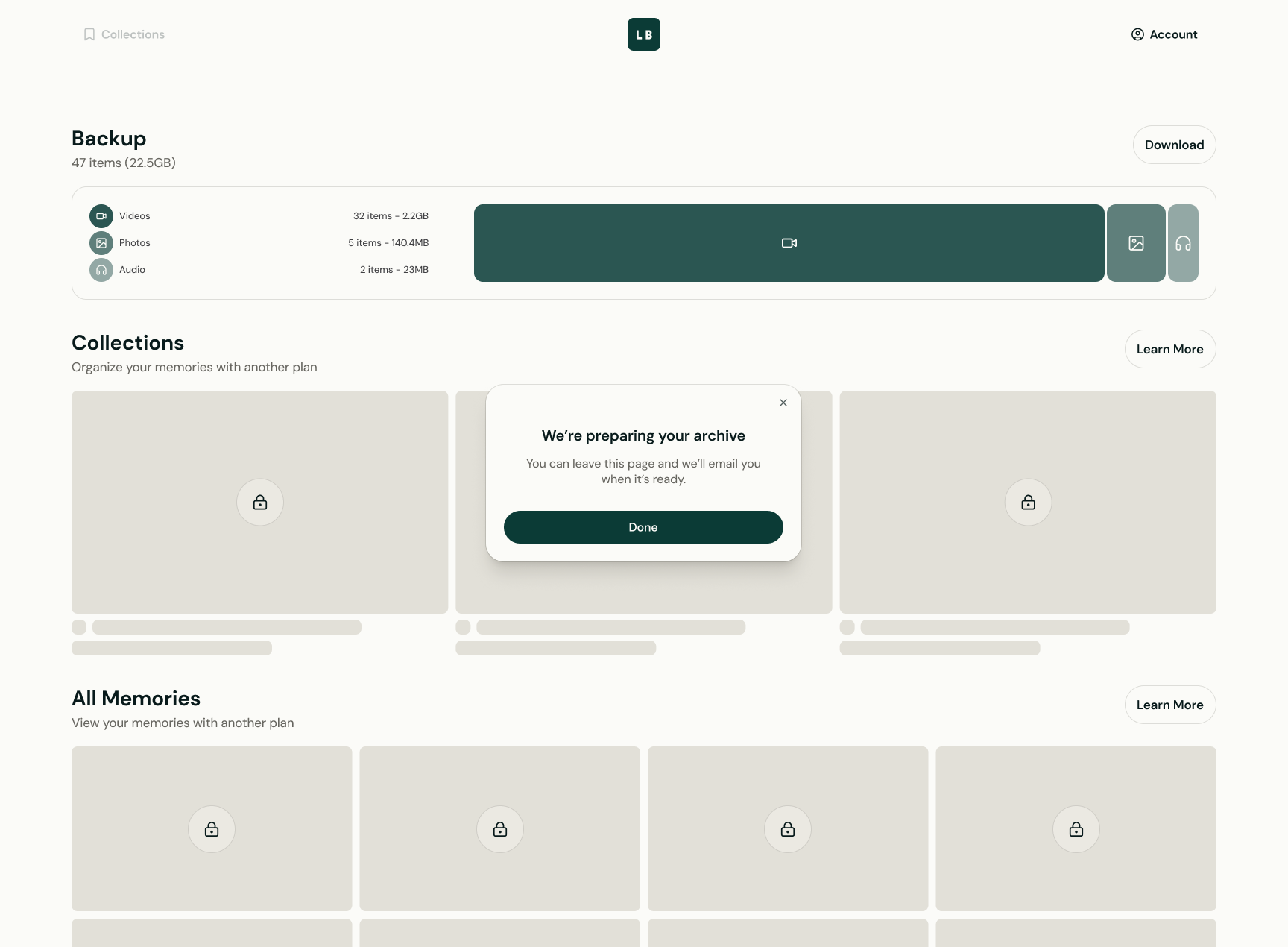
While we work, the button at the top of the Backup section reads Preparing.
Download your archive
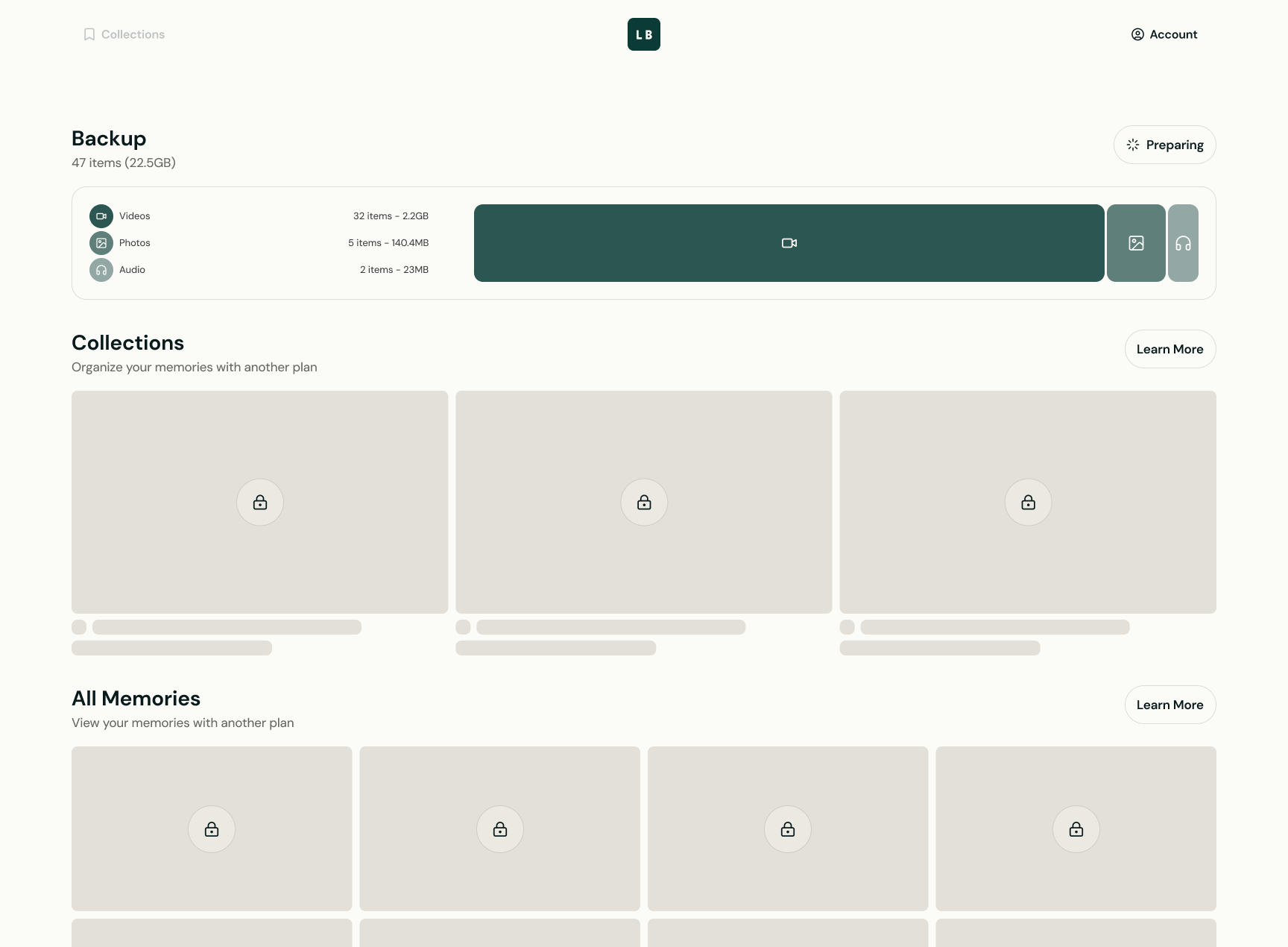
When our email arrives, return to my.legacybox.com and sign in.
Select Download. Your archive begins saving to your computer, usually to your Downloads folder.
Downloading doesn't change anything in your account. Your archive stays right where it is.