
How do I rotate a photo or swap its front and back?Updated 6 days ago
When we digitize your photos, we capture both sides, so handwritten notes, dates, and photo lab stamps on the back are preserved along with the picture itself. Sometimes a photo appears sideways, or the side with handwriting shows first. You can fix both, right from the photo viewer.
Using the Legacybox app? You can view the back of a photo in the app, but rotating a photo and swapping its front and back are done on the website. Sign in at my.legacybox.com in your web browser.
Rotate a photo
Open the photo in the full-screen viewer
Tap the rotate button

Each tap turns the photo a quarter turn. Keep tapping until it is right side up
View the other side of a photo
Photos with two scanned sides show a pair of thumbnails at the bottom of the viewer, with the current front labeled Front. Tap the other thumbnail to flip the photo over.
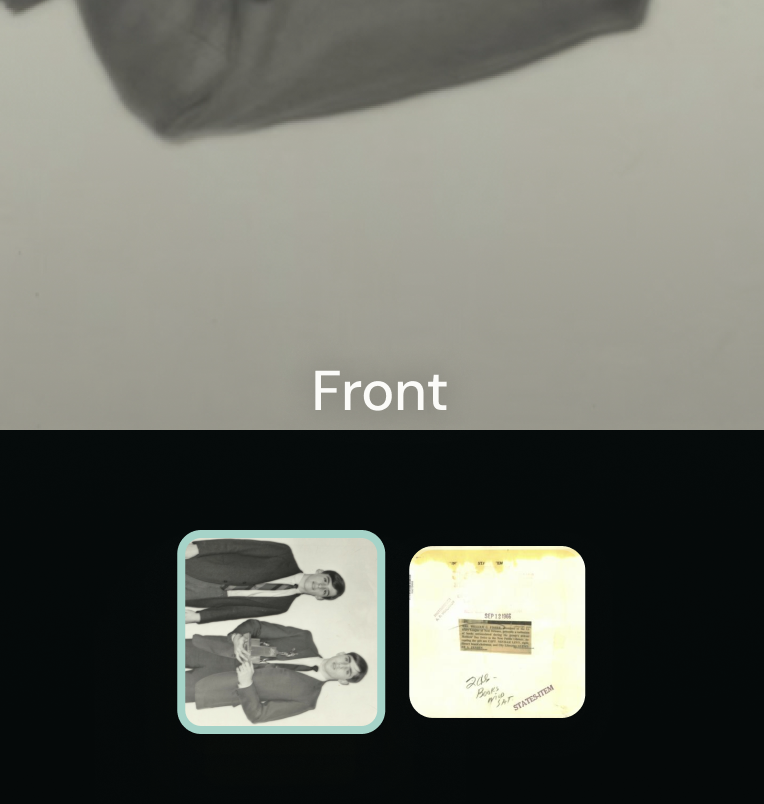
Swap which side is the front
If the side with handwriting is showing first, you can make the picture side lead instead.
Open the photo in the full-screen viewer
Tap the thumbnail for the side you want to bring forward
Tap Swap to front

That side becomes the front of the photo: it now leads in your library, and the other side stays just a tap away.
Good to know
Rotating a photo or swapping its sides never changes or deletes anything. Both sides stay saved with your memory
Titles, dates, details, and comments stay with the photo no matter which side is in front